Charts
The Charts page is where you look at Allsky data over time instead of as a single current value. It is designed for browsing trends, comparing related measurements, and building a workspace that helps you understand how your system has behaved across time. While other parts of the WebUI are more focused on current status or individual events, the Charts page is for looking at the bigger picture.
For many users, this page becomes most useful when they need to answer questions such as:
- did a change happen suddenly or gradually?
- did two values change at the same time?
- has the same pattern happened more than once?
- was a problem limited to one short period, or was it present all night?
Charts are often the easiest way to answer those questions because they let you see changes in shape, timing, and scale much more clearly than a table or status summary can.
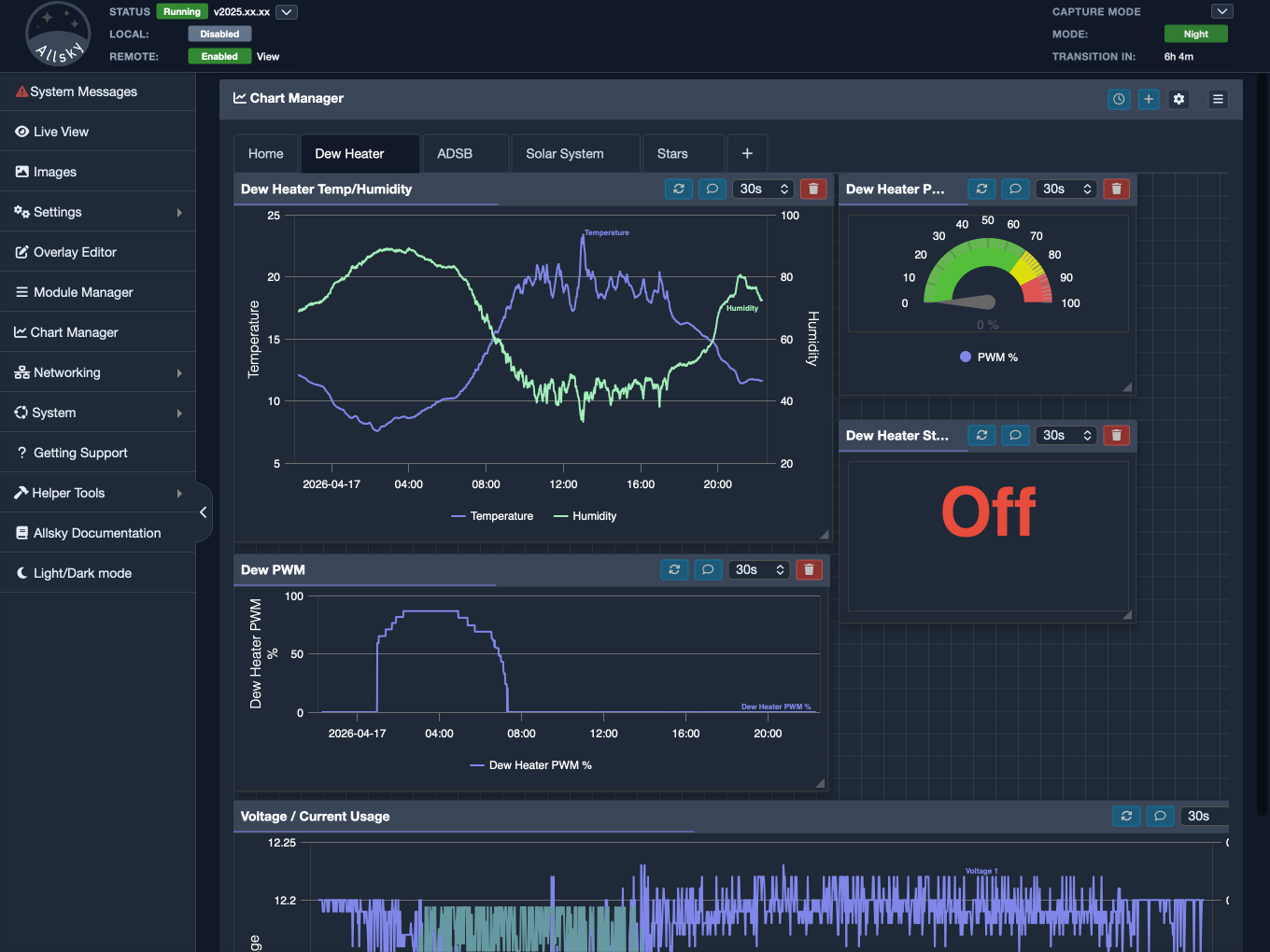
Charts page main layout
Rather than thinking of the Charts page as a single graph, it is better to think of it as a workspace. You can open different charts, organise them into tabs, resize them, move them around, and return later to find the layout still available. Because the layout is something you can shape, the page rewards a little time spent arranging it properly.
What The Page Is For
The main purpose of the Charts page is to help you understand patterns and relationships in recorded data. A single number may tell you what something is right now, but it does not show whether that value has been steady, rising, falling, or changing repeatedly. A chart adds that missing context.
The page is also useful because it does not force you into a single fixed layout. You can keep one tab for general monitoring, another for more detailed investigation, and another for custom charts that answer a very specific question.
Allsky comes with some built-in charts and you can create your own as well.
Understanding The Header Buttons
The icons in the top-right corner affect how you work with the Charts page.
The clock button controls the global time range for the current workspace. This is one of the most important features on the page because it allows the charts you are viewing to use the same period of time. When several charts are all showing the same range, it becomes much easier to compare them and notice whether changes line up.
In everyday use, this means you can set a period such as the last hour, last day, or last week and then see how several different values behaved over that same window. If you are investigating a known issue, you can also choose a more exact start and end time so that the charts focus on the period you care about.
The plus button opens the custom chart editor. This is used when you want to create a new chart of your own rather than simply place an existing chart into the page. That distinction matters. If you want to use one of the charts that already exists in the chart library, you open the chart menu and add it from there. If you want to create something new, the plus button is where you begin.
The gear button opens the chart manager options. These settings affect how the workspace behaves and how charts are arranged on the page. They do not change the underlying data. Instead, they help you control the layout style, grid behaviour, snapping, and default refresh settings for new charts.
The menu button opens the available charts panel. This is where you browse the charts that are already available, including built-in charts and any custom charts you have saved. From this panel, you can choose the charts you want and add them to the current tab.
If you build your own charts over time, this panel gradually becomes your chart library. It is the central place for finding existing charts and reusing them in new layouts.
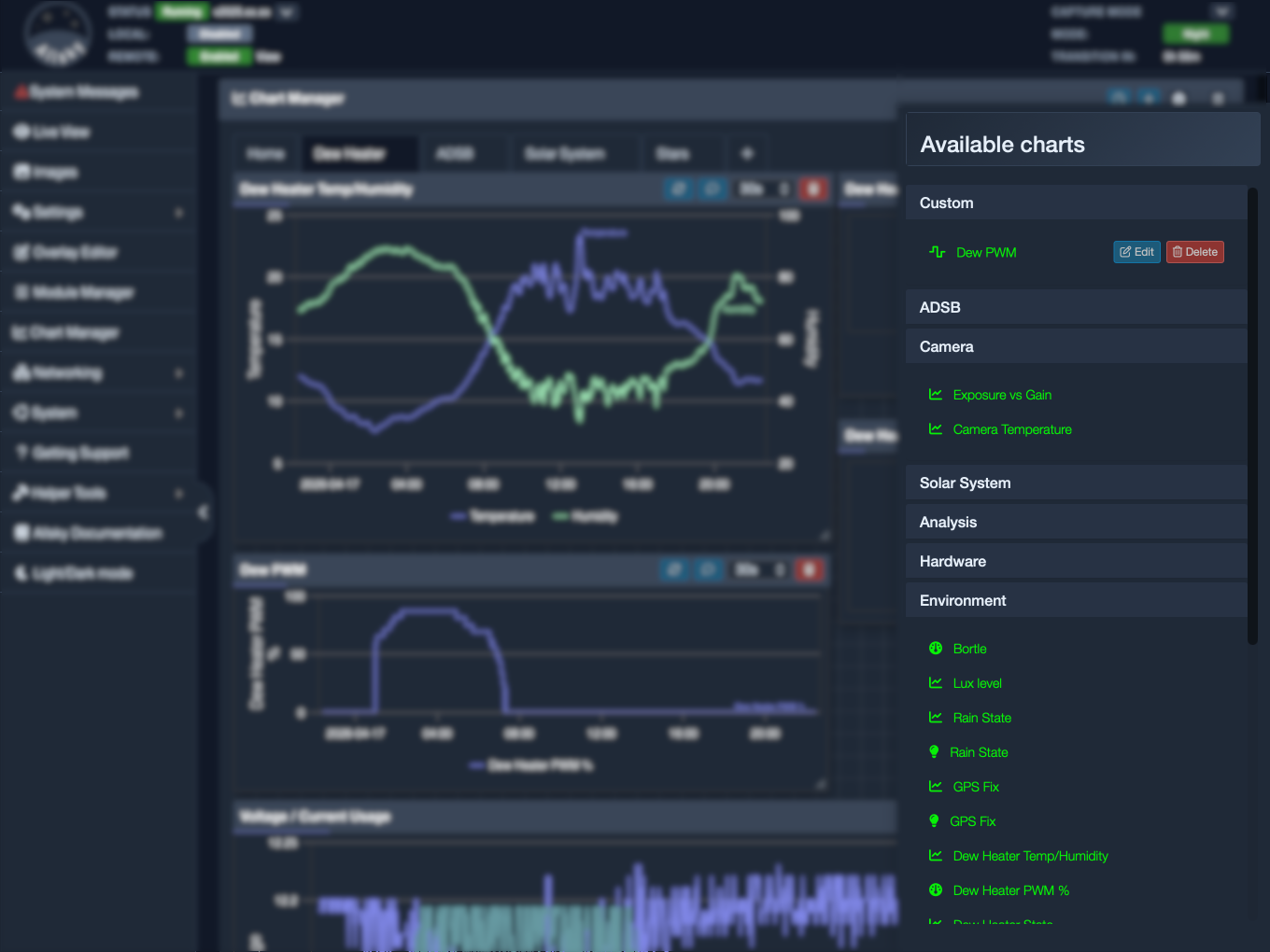
Available charts side panel
Adding A Chart To The Workspace
The normal way to add a chart to the page is through the chart menu. Open the available charts panel, choose the chart you want, and place it into the current tab. Once it has been added, it becomes part of that tab’s layout and can be moved or resized as desired.
It helps to keep in mind that there are two separate ideas here:
- adding an existing chart to the workspace
- creating a completely new custom chart which can be saved and resused later
Start with a small layout
If you are new to the Charts page, begin with only a few charts that answer a clear question. It is much easier to build a useful layout gradually than to fill the page immediately and then try to make sense of it afterwards.
Once a chart is on the page, you can move it and resize it. This is useful because not every chart deserves the same amount of space. Some charts are only there for context and can remain fairly small. Others may need to be larger if you want to read them carefully or compare detail over a longer period.
A practical way to build a tab
A common approach is to set the time range first, add two or three related charts, and then resize them so they can be compared comfortably at a glance. Once that works well, you can either expand the tab or create a second one for a different topic.
Working With Tabs
Tabs allow you to keep several chart layouts without forcing everything into a single crowded page. The default layout begins with a Home tab, but you can create additional tabs, switch between them, rename them, and remove them when they are no longer useful. You might want:
- one tab for general system monitoring
- one tab for comparing values related to a specific issue
- one tab for experiments or less frequently used custom charts
Using tabs keeps each view more readable. Instead of building one large dashboard that becomes crowded and difficult to scan, you can keep separate workspaces with a clearer purpose. The page also remembers the layouts you build.
Time Range And Comparison
The shared time range is one of the features that gives the Charts page most of its practical value. When the charts in the workspace are all showing the same period, comparing them becomes much easier. You do not need to keep adjusting each graph separately just to line up the same window of time.
Quick time ranges are convenient when you want to move rapidly between common views such as the last hour, the last day, or the last week. This is useful for routine browsing and general monitoring. Start and end times are more useful when you know exactly which period you want to inspect, such as when you are investigating a particular event and want the charts to focus tightly on that interval.
The range applies to the workspace, not just to one chart. If several charts all show a change at roughly the same moment, the connection is much easier to see when they are aligned to the same time window. !!! note
When you change the global time range, the charts reload using that new period. If your workspace contains several charts, this may take a moment while each one refreshes.
Auto-Refresh And Live Monitoring
Although the Charts page is excellent for reviewing past behaviour, it can also be useful for ongoing monitoring. Charts can refresh automatically, which allows the displayed data to keep updating as new values arrive. This makes the page useful in situations where you want both recent history and something close to a live view.
That balance is one of the strengths of the page. It is not just a static report, but it is also not limited to showing only the current moment. Instead, it gives you a moving window into how things have been changing.
The default refresh rate for newly added charts is controlled through the options dialog, but individual charts can keep their own settings.
The Options Dialog In Detail
The options dialog affects how the chart workspace behaves rather than what data is shown. These settings are mainly about making the page easier to arrange and more comfortable to use.
/// details | Grid enabled
When grid mode is enabled, the workspace shows a layout grid and charts can align to it more easily. This is helpful if you prefer a tidy, structured dashboard where charts line up neatly.
///
/// details | Grid size
The grid size controls how fine or coarse that layout grid feels. A smaller grid can give you more detailed control over placement, while a larger grid encourages broader, cleaner blocks that may be easier to manage.
///
/// details | Drag snap type
This controls how charts snap while you move them. Depending on your preference, you may find it easier to work with snapping during movement or snapping when the chart is released into place.
///
/// details | Default auto-refresh
This sets the starting refresh interval for newly added charts. It does not automatically change every chart that already exists in the workspace.
///
If the layout ever feels messy or awkward, the options dialog is a good place to check. Small changes here can make a noticeable difference to how easy the page is to organise.
Custom Charts In More Detail
Custom charts allow you to go beyond the built-in chart library and create views that are better suited to your own needs.
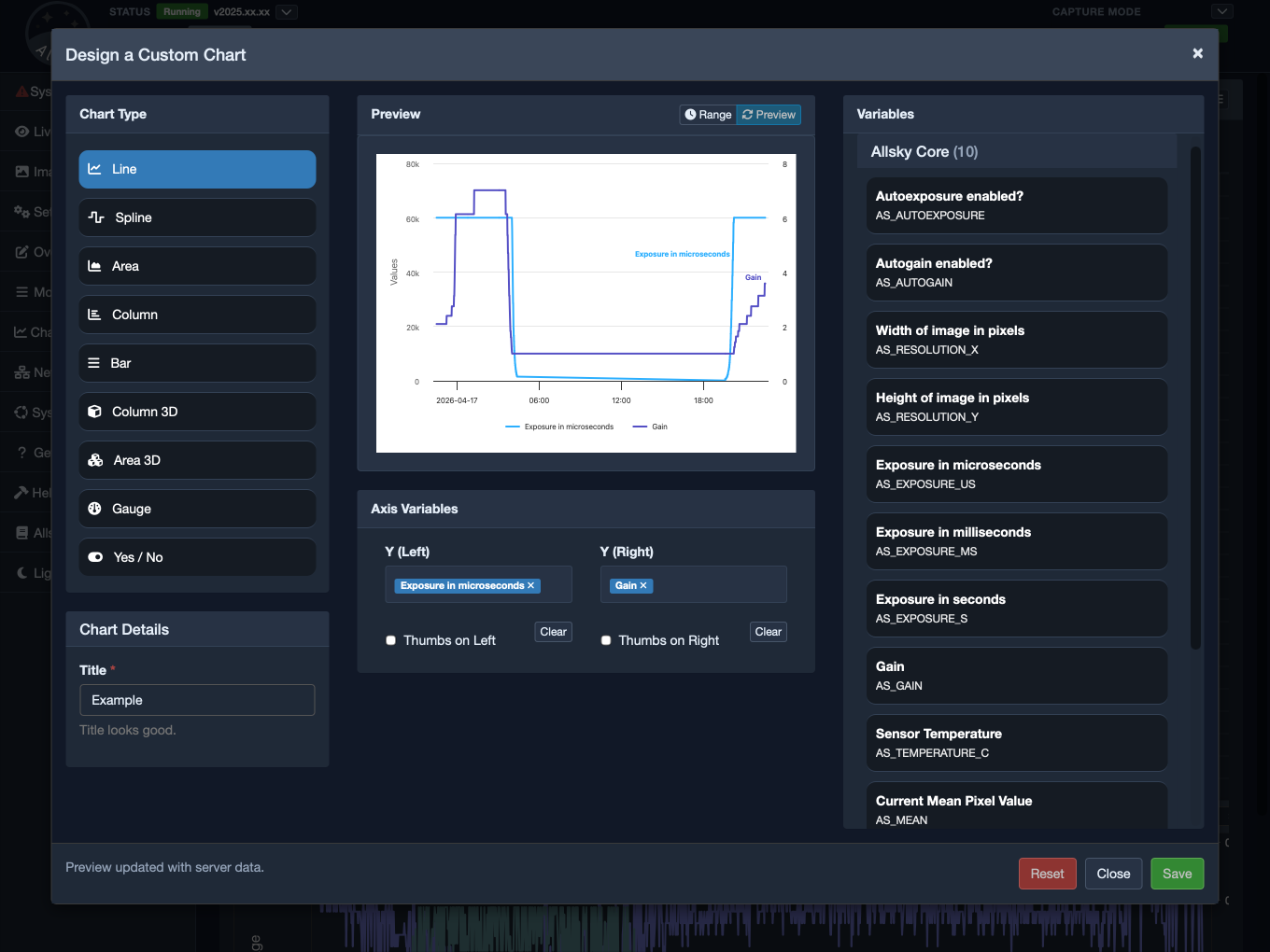
Custom chart editor
Creating a custom chart normally involves opening the editor with the plus button, choosing the settings for the chart you want, giving it a title, and saving it. Once saved, it becomes part of the available charts list and can then be added to a tab in the same way as any built-in chart.
Saving a custom chart does not place it on the page automatically
Saving creates or updates the chart definition in the library. You still need to add it to a tab from the chart menu when you want to use it in a layout.
When creating a custom chart, it is best to begin with a clear purpose. Think about the question you want the chart to answer. A chart that is built around one clear idea is usually much easier to read and more useful in practice than a chart that tries to include too much at once.
Making The Most Of The Page
The Charts page is most effective when you use it with a clear purpose. Instead of adding charts at random, decide what you want to compare or understand, choose an appropriate time range, and then add only the charts that help answer that question. Arrange them so the comparison is easy to read, and use separate tabs when a different topic needs its own space.
Over time, this page often becomes one of the most revealing parts of the WebUI. It does not replace logs, and it does not replace the system status pages, but it complements them by showing change over time in a form that is easy to interpret. That is what makes it so useful. It helps you see trends, compare related values, and build views that match the way you actually investigate and monitor your Allsky system.