Watchdogs
The Watchdogs tab in the System WebUI page helps you keep an eye on background services. While the System tab gives you a broad view of the Raspberry Pi and the Allsky installation as a whole, the Watchdogs tab is more focused. It is concerned with specific services that Allsky expects to be present and with whether those services appear to be healthy right now.
This tab is useful when you want to answer questions such as:
- Is a service running?
- Has a service stopped unexpectedly?
- Is there an obvious recovery action available from the WebUI?
- Which service should I investigate next?
If the System tab tells you that something is wrong, the Watchdogs tab often helps narrow that down to a smaller and more actionable question.
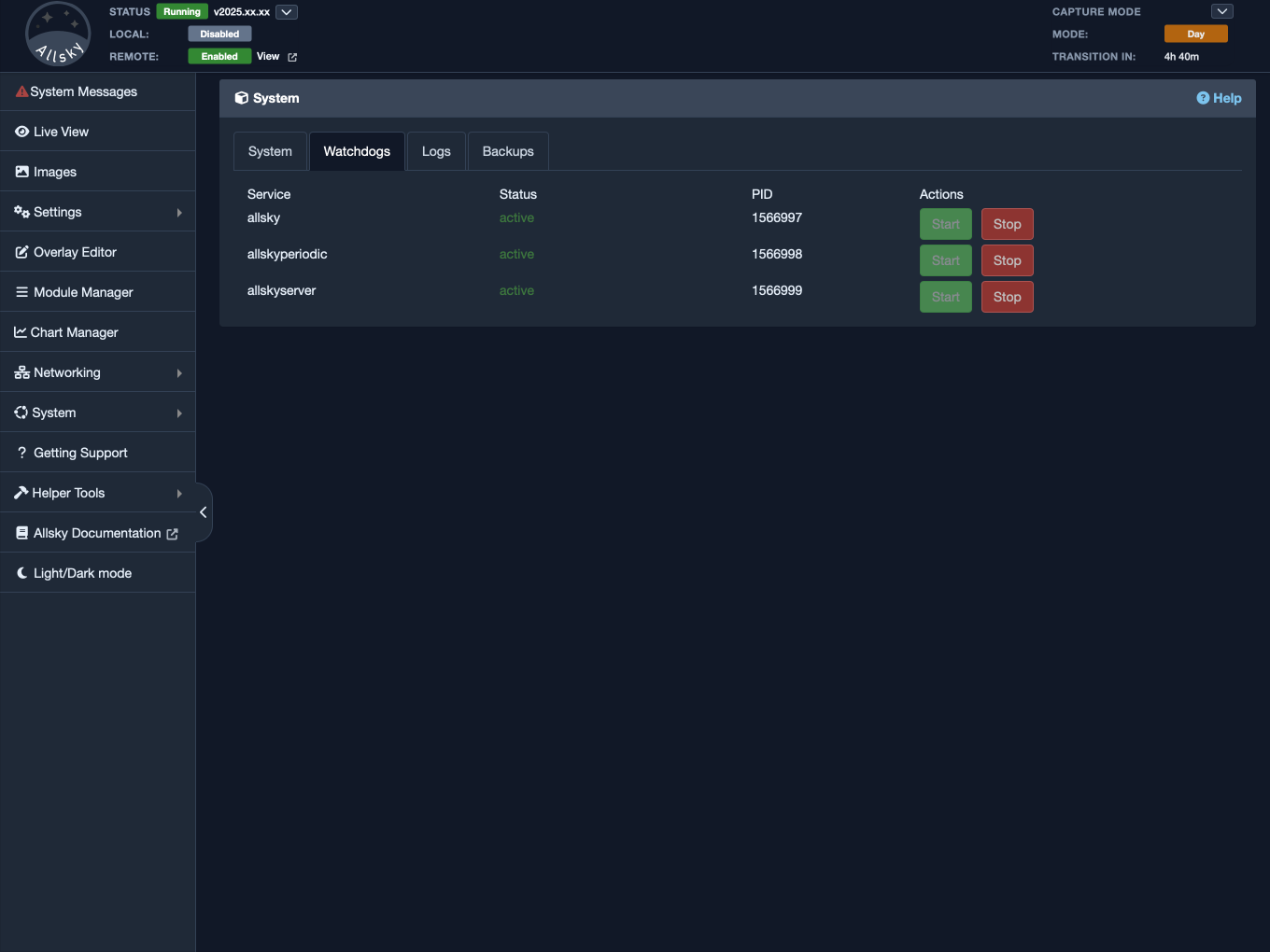
Watchdogs tab
Why This Tab Matters
Many problems do not begin as full system failures. The Raspberry Pi may still be up, the network may still be working, and the WebUI may still open normally, but one background service may have stopped, restarted, or become unhealthy. When that happens, the overall system can look partly functional while still not behaving the way you expect.
That is where the Watchdogs tab becomes useful. It helps you move from a vague concern such as “something is not working properly” to a more specific observation such as “this particular service is stopped” or “this service is active but seems to have restarted”.
What This Tab Shows
The Watchdogs tab is usually presented as a simple table. Each row represents one service, and each column gives you a different piece of operational information about that service.
Although the exact layout may vary slightly, the tab generally shows:
- the service name,
- the current status,
- the Linux Process ID (PID),
- any available actions.
The screenshot above shows the three Allsky services.
The Service Name Column
The service name tells you which service each row refers to. For many users, this will be the first column they look at because it establishes what they are actually inspecting.
This is important because this tab is not showing every process on the Raspberry Pi. It is showing the services that matter to Allsky’s watchdog view of the system. That makes this tab much more focused than a generic process listing.
Note
The phrase "Starting or stopping the allsky service" is the same as "Starting or stopping Allsky". Allsky (with a capital A) is the official name of the software and is started when the service starts.
The Status Column
The status column is usually the most important part of the table. This is where you see whether a service appears to be active, stopped, or otherwise in a state that needs attention.
When everything is healthy, this column gives you reassurance that the services are currently where they should be. When something is wrong, this is often the first place it becomes obvious.
The value of this column is not just technical. It is practical. A stopped service tells you something useful immediately:
- a feature may not be working,
- a background task may not be running,
- the next step may be to restart or inspect that service,
- the issue may not be with the whole Raspberry Pi, but with one service.
The status display is especially useful when compared with your real-world symptoms. If a feature in the WebUI is not behaving properly and the corresponding service shows an unhealthy or inactive status, that is a strong clue about where to investigate next.
The PID Column
The PID, or process ID, may look like a small technical detail, but it is often more useful than it first appears.
A PID confirms that there is a current running process associated with that service. That matters because it distinguishes between a service that is merely expected to be running and one that actually has a live process at the moment.
For everyday users, the PID is helpful in a few practical ways:
- it confirms that the service really is running now,
- it can help you notice whether a service has restarted,
- it gives you a reference point if you later inspect logs or use command-line tools,
- it helps separate “active and stable” from “active but changing”.
For example, if the service still shows as active but the PID changes unexpectedly between checks, that may suggest the service has restarted. That does not always mean there is a problem, but it is a useful clue, especially when you are already investigating unusual behaviour.
The Actions Column
The actions column exists so that the tab is not purely descriptive. It is meant to help you respond as well as observe.
Depending on the service and the way your system is configured, the tab may provide one or more actions that let you interact with that service directly from the WebUI. The exact options can vary, but the idea is consistent: if a service looks wrong, the Watchdogs tab should help you take the next obvious step.
From a user point of view, this is convenient because it reduces context switching. Instead of noticing a problem in the browser and then immediately moving to the terminal, the tab may already give you a practical recovery action.
That said, these controls should still be used thoughtfully. Restarting or otherwise intervening in a service may be appropriate, but it is still worth considering what symptom you are trying to fix and whether you need supporting evidence from the logs first.
How The Services Affect Each Other
In normal use, the allsky service acts as the core of the running system. Because of that, stopping the allsky service does not only stop that one row in the table, it also stops the related services that depend on it. You are not simply stopping one component. You are effectively bringing down the rest of the Allsky services with it.
The relationship also works in the other direction. If one of the other services is started, the allsky service will also be started. This is helpful because it means you do not have to manually work out the correct startup order for the dependent pieces. The system handles that relationship for you.
This behaviour is worth remembering when you are troubleshooting. If you stop Allsky as part of a test, expect the other services to stop as well. If you start a related service and then notice that Allsky is now running too, that is normal and expected rather than a separate surprise event.
Understanding that relationship makes the Watchdogs tab much easier to interpret. It helps explain why several rows may change together after a single action and prevents you from mistaking normal dependency behaviour for an additional fault.
How To Use This Tab In Practice
The best way to use the Watchdogs tab is usually as a follow-up tab rather than a starting tab.
A common flow looks like this:
- You notice that something in Allsky does not seem right.
- You open the System page to confirm whether the Pi and Allsky look broadly healthy.
- If the issue appears to be more specific than general, you open the Watchdogs tab.
- You check which service looks unhealthy, missing, or unexpected.
- You decide whether to use an available action or move on to the Logs tab for deeper investigation.
This makes the Watchdogs tab particularly useful when the system is only partly broken. If the whole Pi is down, this tab is unlikely to help because the WebUI itself may be unreachable. But when the Pi is up and one feature seems wrong, Watchdogs is often exactly the right tab to narrow the problem.
What This Tab Is Not
It is important to understand what the Watchdogs tab is not trying to be. It is not a replacement for:
ps,top,htop,systemctl status,- detailed log analysis.
Those tools still have their place, especially when you are doing deeper technical troubleshooting. The Watchdogs tab is more focused and more selective. It shows the services that matter to the WebUI’s operational model rather than trying to expose every possible process detail on the Raspberry Pi.
That is not a limitation so much as a design choice. This tab is intended to be immediately useful for operational checks, not to replace full Linux process inspection tools.
When To Move On To The Logs Tab
The Watchdogs tab is very good at helping you answer the question “which service looks wrong?” It is much less effective at answering the question “why did it go wrong?” That second question is usually where the Logs tab becomes more important.
If the Watchdogs tab shows a service that is stopped, unstable, or otherwise unexpected, the next step is often to open the relevant log file(s) in the Logs tab and look for:
- startup failures,
- permission errors,
- missing files,
- repeated restarts,
- timeouts,
- script or configuration errors.
Seen this way, the relationship between the tabs becomes very clear:
- System tells you whether the installation looks broadly healthy.
- Watchdogs helps identify which service looks wrong.
- Logs help you understand why it looks wrong.
Note
The log files usually have the word ERROR in error messages.
Practical Reading Tips
Useful questions to ask yourself when viewing this tab include:
- Does every service I expect to see appear in the table?
- Does the status of each service make sense right now?
- Is there a PID where I would expect one?
- Has the PID changed since the last time I checked?
- Is there an obvious action I should take here, or do I need to look at the Logs tab first?
Summary
The Watchdogs tab is the WebUI’s focused service-supervision tab. It is most useful when the Raspberry Pi is still reachable and the system seems only partly wrong rather than completely unavailable.
Use it when you need to understand which service looks unhealthy, stopped, or unexpected. Used together with the System and Logs tabs, it helps turn a vague operational problem into a clearer and more actionable diagnosis.