Logs
The Logs tab on the WebUI's System page is where we move from symptoms to evidence. Other tabs can tell you that something looks wrong. The Logs tab helps you see what the system actually reported when it happened.
This is one of the most useful tabs in the WebUI when you are troubleshooting, because it gives you browser-based access to important log files without needing to open a terminal. If Allsky failed to start, if a periodic task is misbehaving, if the web server has reported an error, or if a script is producing warnings, this is often the tab that turns a vague problem into something concrete.
In practical terms, the Logs tab helps answer questions such as:
- What happened when Allsky started?
- Did the web server report an error?
- Is a script failing repeatedly?
- Did a service display a warning just before something stopped working?
- What changed when I tested a setting or restarted a process?
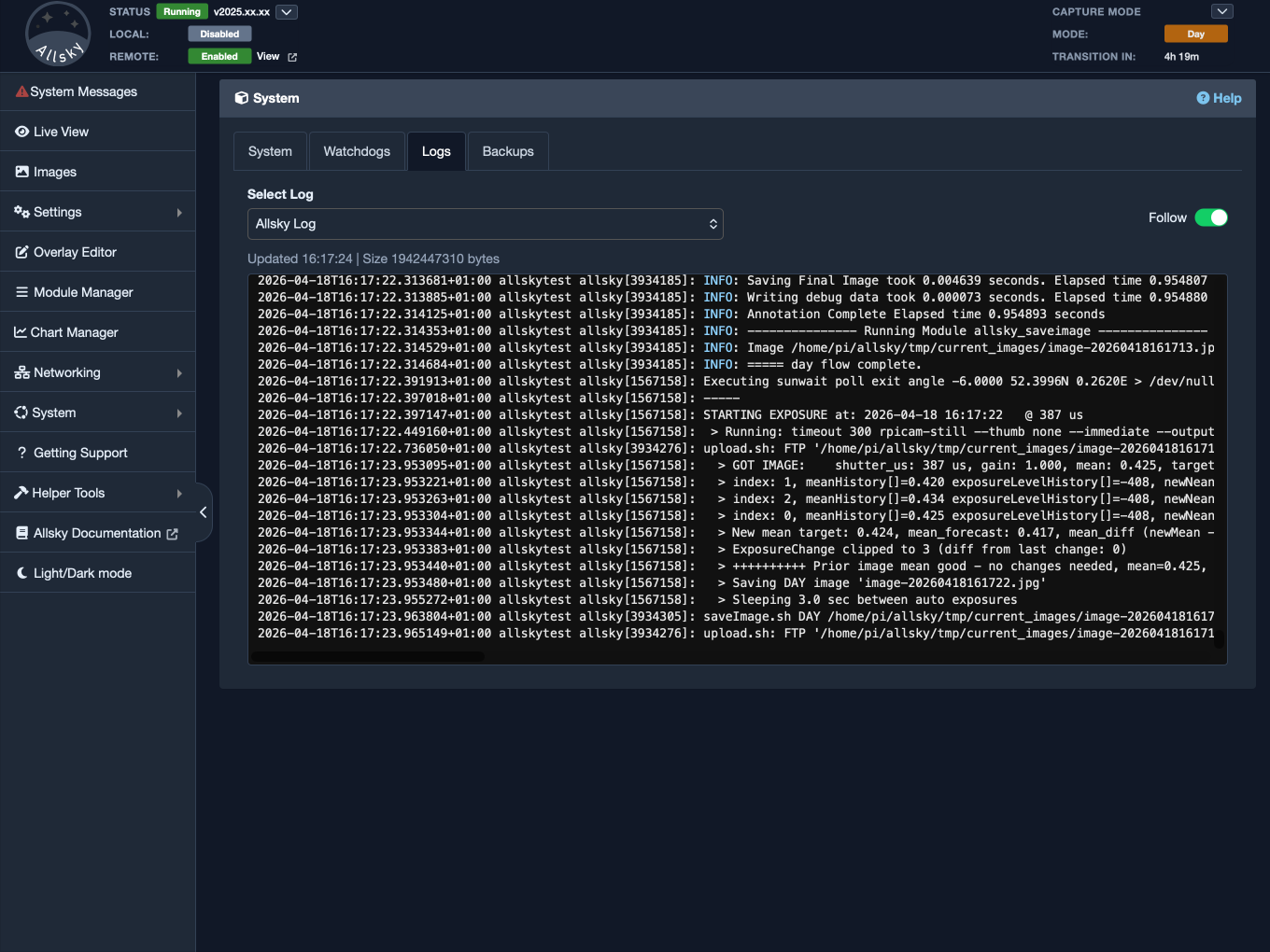
Logs tab main view
Why This Tab Matters
Many problems cannot be understood from status indicators alone. A page may tell you that something failed, stopped, or did not update, but that still leaves the most important question unanswered: why? The Logs tab is often the first place you can answer that question properly.
Instead of showing summaries, it shows the messages written by the software itself. Those messages may include:
- normal informational output,
- warnings,
- errors,
- repeated failures,
- startup messages,
- web server problems,
- script output.
A symptom may suggest several possible causes. A log message often narrows that to one or two realistic ones very quickly.
What The Tab Shows
The Logs tab is built around two main parts:
- a selector for choosing which log file to view,
- a large viewer area that displays the current contents of the selected log.
The default list includes these logs:
- the main Allsky log (
/var/log/allsky.log), - the prior Allsky log (
/var/log/allsky.log.1), - the Allsky periodic log (
/var/log/allskyperiodic.log), - the Lighttpd error log (
/var/log/lighttpd/error.log).
You can add logs to the list (see the Advanced: Customising Which Logs Are Shown box).
The viewer gives you enough space to scan recent log output and to spot what changed after a restart, a button press, or a configuration adjustment.
Choosing The Right Log
One of the main skills in using this tab well is choosing the log file that best matches the problem you are seeing. As a general rule:
- start with the Allsky log when the main capture or processing behaviour looks wrong,
- use the Allsky (prior copy) log if the Allsky log didn't have the problem you expected,
- use the Allsky periodic log when the issue appears related to scheduled or repeated tasks,
- use the Lighttpd error log when the problem looks more like a WebUI or web-serving issue.
Note
The amount of information written to the three Allsky logs is determined by the Debug setting in the WebUI. The higher the number, the more information written.
The Logs tab is most effective when approached with a question in mind. It works best when you are asking something specific such as:
- What happened when Allsky restarted?
- Why did this upload fail?
- Did the web server complain at the same time?
- What was written to the log when I pressed this button?
Reading The Log Viewer
The main viewer area shows the contents of the currently selected log. In normal use, you will often be looking at the most recent part of the file (the bottom) rather than its entire historical contents.
This is usually exactly what you want. During troubleshooting, the most valuable messages are often the recent ones:
- the lines written when a service started,
- the lines written just before a failure,
- the messages produced when you tested a change,
- the warnings that appeared when the system misbehaved.
The viewer is designed to make that recent activity easier to work with in the browser. It is not meant to replace a full terminal session for very large or long-term investigations. Instead, it is intended to get you to the important evidence quickly.
Using Follow Mode
One of the most useful controls on the Logs tab is the Follow option. When this is enabled, as new lines are written to the selected log file, the display updates so you can watch the file change in near real time.
This is especially useful when you are actively testing something, for example:
- restarting Allsky,
- pressing a button in the WebUI,
- reproducing a problem,
- changing a setting and watching what gets logged,
- checking whether a repeated error continues to appear.
Follow mode is particularly helpful because it lets you connect cause and effect more clearly. You take an action, and then you immediately see what the software logged in response. That makes it much easier to understand whether the system accepted the action, ignored it, rejected it, or failed partway through.
Truncation And Resets
Log files can become large very quickly, especially on busy systems. For that reason, the WebUI does not try to behave like a full archive browser for arbitrarily large logs.
Instead, this tab is designed to keep the browser view manageable. If the current display has been truncated, reset, or otherwise adjusted to keep the tab responsive, the warning area on the tab tells you that.
This is an important detail to understand. If you are viewing a busy log, you normally will be looking at the most recent entries rather than every line ever written to the file. In practical troubleshooting, that is usually fine and often preferable. But it does mean you should not treat the WebUI viewer as the complete historical record of the file in all circumstances.
For deeper, longer, or more exhaustive inspection, a terminal-based view may still be more appropriate.
How To Use This Tab In Practice
The Logs tab works best when used as part of a larger troubleshooting flow.
A common pattern is:
- Notice a symptom in the system.
- Use the System tab to confirm that something is wrong.
- Use the Watchdogs tab if you need to identify which supervised service looks unhealthy.
- Use the Logs tab to see what the software actually reported.
- Use Follow mode if you need to watch the effect of a restart, test, or repeated action.
This is one of the reasons the Logs tab is so valuable. It fits naturally after the higher-level tabs. The other tabs tell you where to look. The Logs tab often tells you what happened there.
Summary
The Logs tab is one of the WebUI’s most important troubleshooting tools. It lets you inspect log files directly in the browser, follow them live while testing, and move from symptoms to actual evidence much more quickly.
Advanced Topic: Customising Which Logs Are Shown
Most users do not need to change the list of logs shown in the WebUI. This section describes how to change the list of log file, should you need to do so.
Adding log files to the list is mainly useful when:
- you want to add logs from custom scripts or services (e.g., your dew heater script that has its own log file),
- you want the Logs tab to show a different set of files,
- you want to make a different log the default selection.
The list of log files shown in the WebUI is customised by creating a file called:
~/allsky/config/myFiles/monitorable_logs.json
If this file exists and contains valid JSON, its entries are added to the built-in log list used by the Logs tab.
This means you can define extra logs without losing the standard ones that Allsky provides. If one of your custom entries uses the same id as a built-in log, the custom entry takes precedence and replaces the built-in definition for that one log. This allows you to either add new logs or deliberately override a default one (which is rare).
The JSON File Structure
If you decide to use this feature, the JSON structure needs to be correct. The WebUI expects a specific format, and small mistakes in field names, paths, or JSON syntax can prevent the custom entries from working as intended.
It is highly recommended that use the WebUI's Settings -> Editor page to edit the file since it'll show you any formatting errors. If the ~/allsky/config/myFiles/monitorable_logs.json does not exist, create it:
touch ~/allsky/config/myFiles/monitorable_logs.json
monitorable_logs.json from the drop down. You will add lines between the { and } as described below.
The monitorable_logs.json file must contain a top-level JSON object with a logs array. Each item in the logs array defines one log file that can appear in the Logs tab.
The basic structure looks like this:
{
  "logs": [
    {
      "id": "allsky",
      "description": "Allsky Log",
      "location": "/var/log/allsky.log",
      "default": true
    },
    {
      "id": "lighttpd",
      "description": "Lighttpd Error Log",
      "location": "/var/log/lighttpd/error.log",
      "default": false
    }
  ]
}
Required fields
Each log entry should contain the following fields, which are required for the entry to be accepted:
iddescriptionlocation
id
The id field is the internal identifier for the log.
It:
- must be unique within the file,
- must begin with a letter,
- may contain letters, numbers, underscores, and hyphens.
This field is mainly used internally by the WebUI, so it should be short rather than descriptive prose.
Examples:
allskyallskyperiodiclighttpdmy_script_log
description
The description field is the user-facing label shown in the log selector on the Logs tab.
This should be written in a way that makes sense to a human reading the WebUI. It is the name you will choose from in the browser, so clarity matters.
Examples:
Allsky LogAllsky Periodic LogLighttpd Error LogCustom Upload Script Log
location
The location field is the full absolute path to the log file on the Raspberry Pi.
This must be an absolute path beginning with /.
Examples:
/var/log/allsky.log/var/log/allskyperiodic.log/var/log/lighttpd/error.log/home/pi/myLogs/custom-script.log
If the file does not exist or is not readable by the WebUI, it will not be viewable successfully even if the JSON entry itself is valid.
default
The default field is optional and should be true or false.
If set to true, that log becomes the default selection in the Logs tab. If more than one entry is marked as default, the first one encountered is used.
If you omit the field, it is treated as false.
This is useful when there is one log you usually want to see first whenever you open the tab.
Example file
Here is a simple example showing how you might add one custom log alongside the standard built-in logs:
{
  "logs": [
    {
      "id": "uploader",
      "description": "Uploader Script Log",
      "location": "/home/pi/myLogs/uploader.log",
      "default": false
    }
  ]
}
This example adds a custom uploader log. Because the file is additive, the built-in logs remain available as well, even though they do not appear in this JSON file.
Practical advice
If you use the monitorable_logs.json file, it is worth keeping a few practical points in mind:
- the file must contain valid JSON,
- the file extends the default log list rather than replacing it,
- if a custom entry uses the same
idas a built-in entry, the custom one overrides that built-in entry, - the log files themselves need to exist and be readable,
- the file is propogated to new Allsky releases.
A good approach is to treat this as a controlled advanced change: start with a small, correct file and test it before adding more entries. If something looks wrong in the Logs tab afterwards, the first things to check are the JSON syntax, the field names, and the filesystem paths.