Live View
The Live View page is the quickest way to see what your Allsky camera is doing right now. Instead of browsing saved images after the fact, Live View continuously reloads the current image so you can watch the camera output as it changes. That makes it useful both for everyday monitoring and for those moments when you are actively adjusting something and want immediate feedback, such as camera aim, focus, exposure behaviour, lens cleanliness, or the effect of weather moving across the sky.
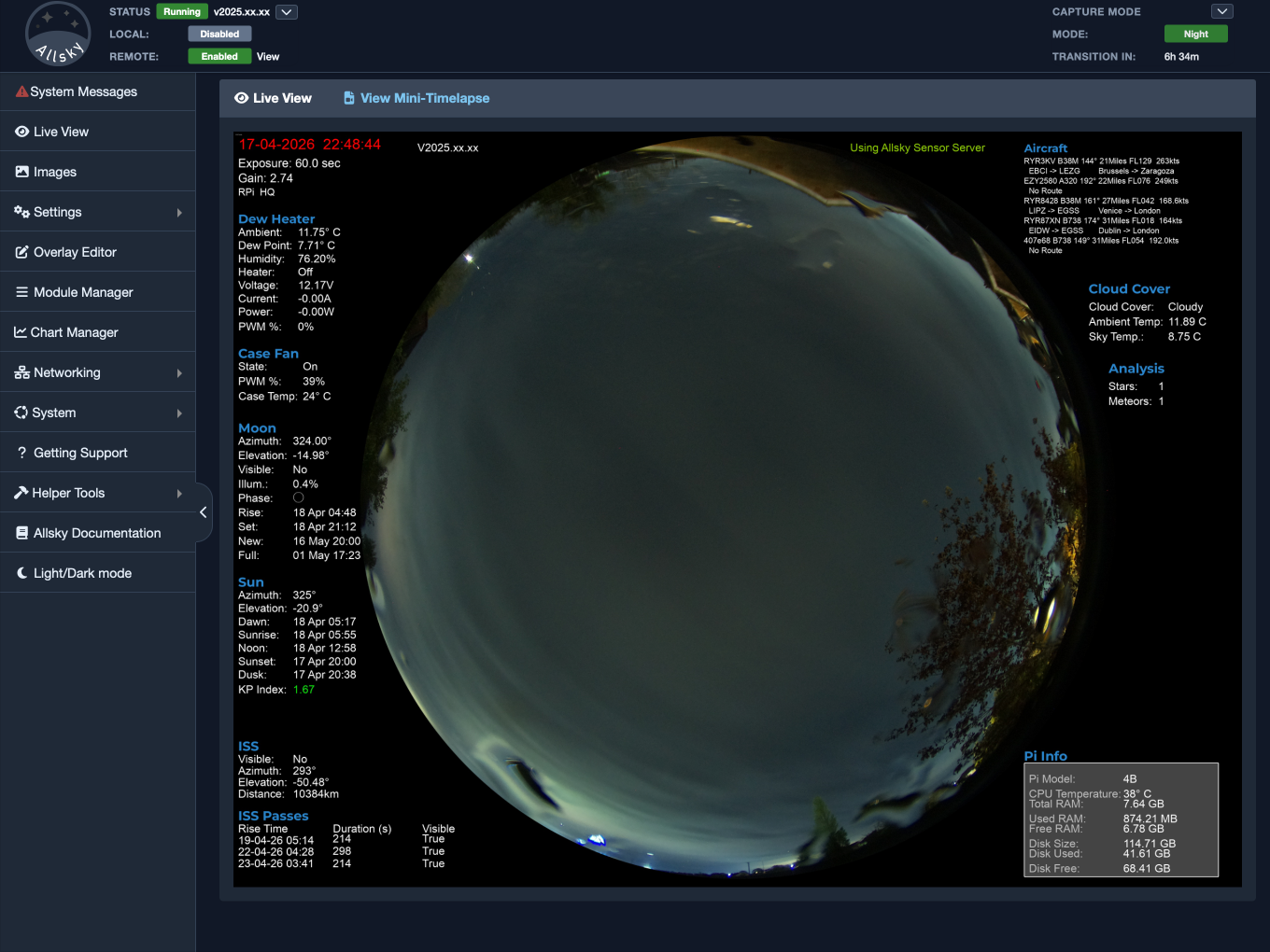
Main Live View page
When everything is working normally, the page simply shows the latest image being produced by Allsky and updates it automatically. Daytime and nighttime refresh timings can be different, because Allsky itself may be capturing images at different intervals in those periods. If the page is opened during the daytime it will use the daytime refresh interval, and if it is opened at night it will use the nighttime interval. One small detail worth knowing is that if you leave the page open across a day to night or night to day transition, the refresh timing may no longer match the new capture interval exactly. If that happens, just reload the page and it will immediately pick up the correct timing again.
Depending on your settings, you may also see a message explaining how often daytime and nighttime images are updated. That message is simply there as a reminder of the expected refresh cadence, so if the image seems slow to change you have some context for what is normal. If you prefer a cleaner page, that message can be hidden with the Show Updated Message setting in the Settings - Allsky Settings page.
The image itself can be clicked to switch into fullscreen mode. This is especially handy when you want to inspect cloud movement, check whether stars are sharp, or simply use the page as a larger live monitor. Clicking again, or exiting fullscreen in the usual browser way, returns you to the normal page layout.
If a mini-timelapse has been created, a link to it appears in the header of the page. This is a small feature, but in practice it is very convenient when you are trying to understand whether something you are seeing is a one-off frame or part of a longer trend.
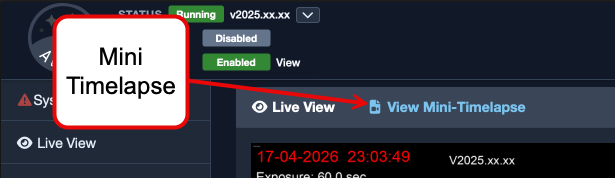
Mini-timelapse link in the Live View header
Live View is also one of the best places to use while focusing the camera. In normal operation there is always some delay between images because Allsky is capturing, processing, and then displaying them. In Focus Mode, however, the system is designed to update as quickly as possible to help with focusing. In that mode Allsky skips most of the normal post-processing work, does not save or upload images, and captures the next frame as soon as the current one is ready. Because the image is changing so quickly, you may occasionally catch the page while the file is being updated and see a brief visual glitch. That is expected and is simply a side effect of refreshing the live image very frequently.
Tip
If you are trying to focus the camera and the Live View page was already open, refresh the page first. That ensures it starts using the faster timing immediately.
If Live View does not seem to be updating, the first thing to check is whether Allsky is actually capturing images. The page depends on the current image being refreshed by the capture process, so if Allsky is stopped the displayed image will appear frozen. The same applies when dark frames are being captured. In that case the page will show a message explaining that Allsky is currently capturing dark frames, which helps avoid confusion if the live image is not behaving as you expect.
If the page loads but the image seems stale, a manual browser refresh is usually enough to recover. If the image still does not change, it is worth checking whether the camera is running normally and whether Allsky is producing new frames. In most cases Live View problems are not really Live View problems at all; they are just the first visible sign that the capture process has stopped or is delayed.
Used well, Live View becomes the page you return to again and again. It is simple, but that simplicity is exactly why it is so useful: one page, one image, always showing what the system is doing right now.