WebUI
The WebUI is the main control interface for Allsky. It is where you configure the system, watch the current image, review what has been captured, adjust overlays, manage modules, inspect the health of the Pi, and access tools that would otherwise require command-line work. In day to day use, this is the part of Allsky most people spend their time in. Even though the actual image capture is being done by the Allsky service in the background, the WebUI is the place where all of that activity becomes visible and manageable.
In practical terms, the WebUI serves two roles at the same time. First, it is an administration interface for Allsky itself. That includes camera settings, upload behaviour, image processing, overlays, modules, charts, and system options. Second, it acts as a viewing and monitoring interface. From the same environment you can watch the latest image, browse saved images, open timelapses, inspect keograms and startrails, and see whether the system is healthy or reporting problems. That combination is one of the reasons the WebUI feels central to the whole project rather than just being a settings page.
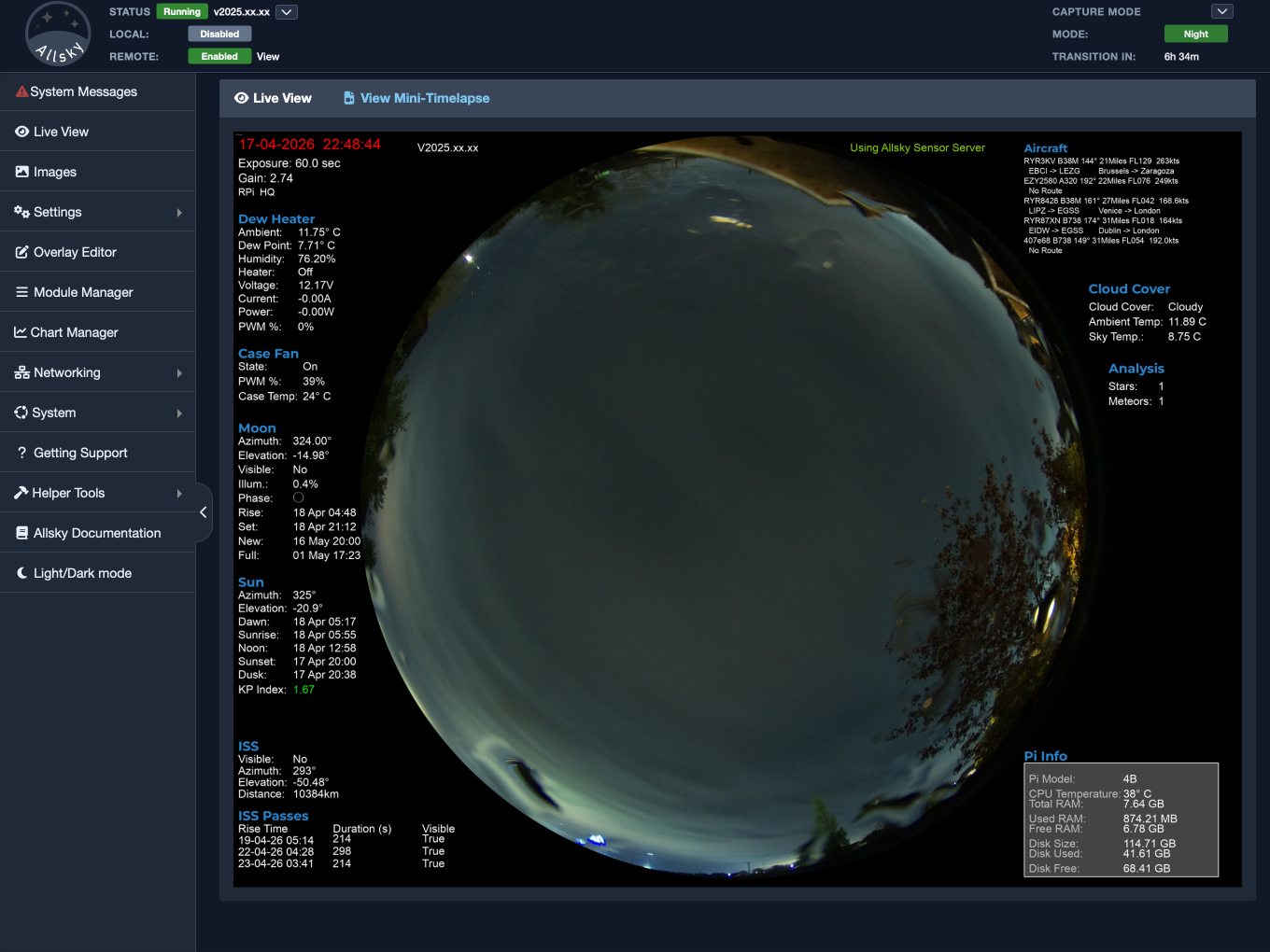
Main WebUI layout
The WebUI is designed so that the most common tasks are close at hand. If you want to confirm the camera is working, the Live View page gives you the latest image. If you want to change how information is written onto images, the Overlay Editor is where that happens. If you want to add extra functionality, such as sensors, data processing, or other post-capture behaviour, the Module Manager is the place to do it. If something seems wrong with the Pi or with Allsky itself, the System page and the network dashboard pages usually give the first clues. Over time, most users settle into a rhythm where the WebUI becomes the normal way to both operate and check their installation.
One useful thing to keep in mind is that the WebUI is not the same as an Allsky Website. The WebUI is the administration side of Allsky. It is where you log in and make changes. A local or remote Allsky Website, by contrast, is intended for viewing and sharing output. The two are closely connected, and the WebUI can configure a Website and upload content to it, but they are not the same thing. That distinction matters because a page or setting that belongs to the WebUI is usually about operating the system, while a page or setting that belongs to a Website is usually about presenting results to viewers.
The WebUI also plays an important part in troubleshooting. Many issues show up there first, either as messages, missing images, stale information, or status indicators that do not look right. Because of that, the WebUI is often the first place to check when something appears wrong. It can tell you whether Allsky is running, whether dark frames are being captured, whether a mini-timelapse failed, whether storage is getting tight, whether the Pi is being throttled, and much more. In many cases, a problem that initially seems mysterious becomes much easier to understand once you look at the relevant WebUI page.
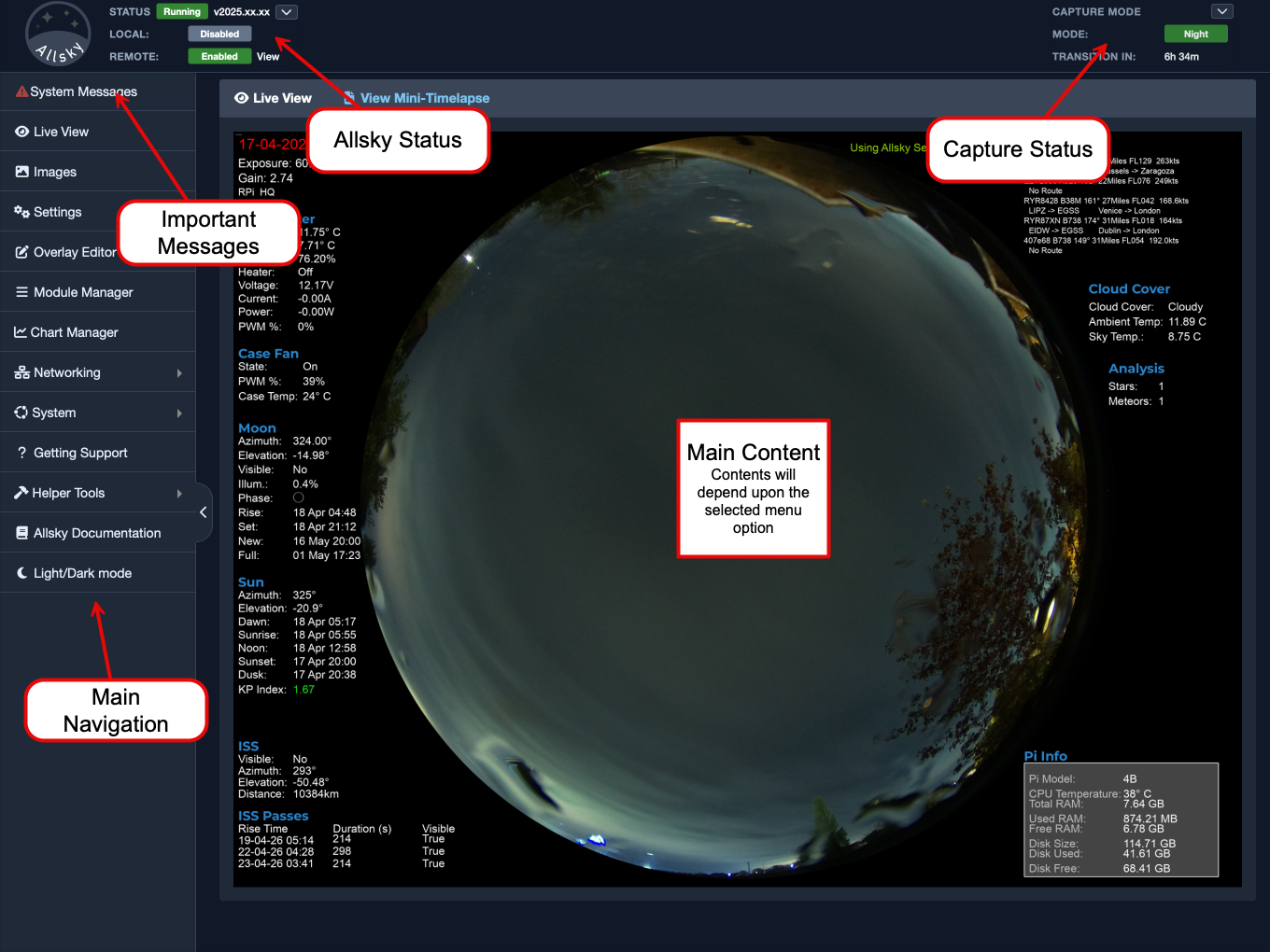
WebUI Main Components
The pages inside the WebUI each have a different emphasis, but they work together. The Settings - Allsky Settings page controls the main capture and processing behaviour. Live View shows what the camera is producing right now. Images lets you browse what has already been saved. The Overlay Editor controls how information is added to images. The Module Manager controls optional and extended processing. The Settings - Editor page exposes configuration files that are easier to manage in a text editor-style view. The Charts page turns stored data into graphs, and the Getting Support page helps collect the information needed to report a problem.
Because the WebUI controls so much of Allsky, changes made there can have wide effects. Adjusting a camera setting may change how images look immediately. Changing a Website setting may alter what is shown on a local or remote Website. Enabling a module may introduce new data, overlays, charts, or hardware interactions. This is generally a strength rather than a risk, but it does mean that it is worth making changes carefully and understanding which page is responsible for which part of the system.
If you are new to Allsky, it is often best to think of the WebUI as the dashboard for the entire installation. You do not need to memorise everything at once. Start by becoming comfortable with the main pages you will use most often, especially Live View, Settings, Images, and System. Once those feel familiar, the more specialised pages such as the Overlay Editor, Module Manager, and Charts become much easier to understand in context.
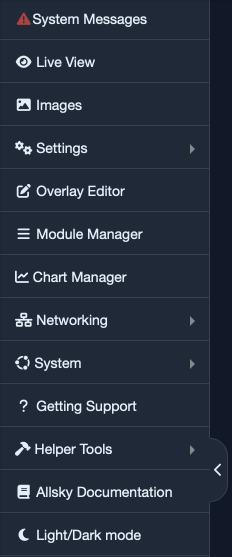
WebUI menu