The Allsky map
The Allsky Map shows the location and basic information of all known allsky cameras. Clicking on a pin displays information about the camera and if the owner has set their image URL, you'll see their last image as well; clicking on the image takes you to their Allsky Website.
Note
We strongly suggest that you make your camera available on the Allsky Map. Doing so gives us a better idea how many people are using Allsky, what cameras are being used, and what model Pis are being used. We can use that data to know where to concentrate our development efforts.
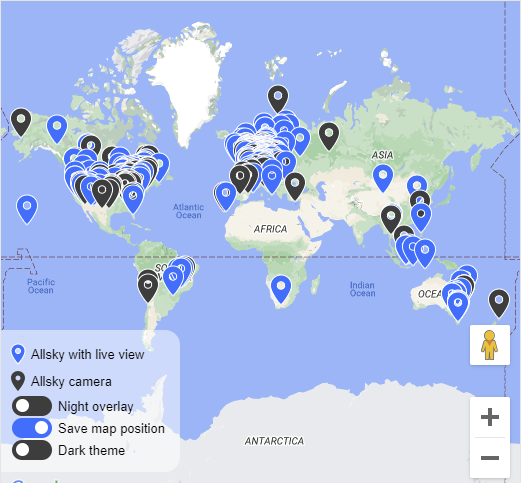
The Allsky Map
Adding your camera
You determine whether or not your camera appears on the Allsky Map, and what data is shown, by changing the Map settings:
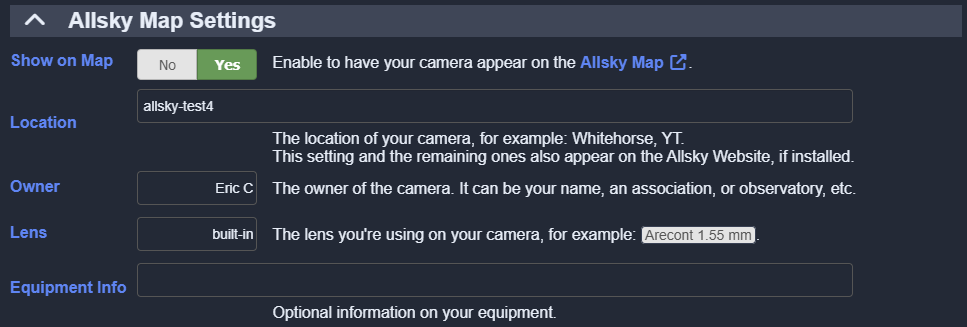
Settings for The Allsky Map
Tip
You can have your camera information appear on the Allsky Map even if your Website isn't available on the Internet. Just make sure the Website URL and Image URL fields of the Websites and Remote Server Settings section in the WebUI are empty, then follow the directions below.
The most common way to have a camera appear on the Allsky Map is to use a remote Allsky Website. The Map server then grabs the image from that Website and when users click on the image in the Allsky Map, they are directed to the URL for the remote Website.
If you are using your Pi as a remote Website (not common), click here for special instructions.
To add your camera to the map, enable Show on Map. If your camera is already on the map you can remove it by turning the setting off. You can also update your information by changing any of the map-related settings.
Once you've enabled Show On Map, your map information will be automatically sent to the map server whenever you change it, as well as every other day so it can distinguish current data from old, expired data.
All these changes take effect immediately - no human intervention required!
See the Allsky Settings documentation page for a description of the map-related settings.
My Image Doesn't Appear on the Map{style="border: 1px solid red"}
The Map server uses https and if the URL to your server uses http then your image won't appear. For security reasons, most browsers won't follow an http link that's on an https page. The fix is to use https. If you are using a hosted service, talk to the hosting company. Nowadays, almost all commercial services provide https, although you may need to pay for it.
If you see a message like this:
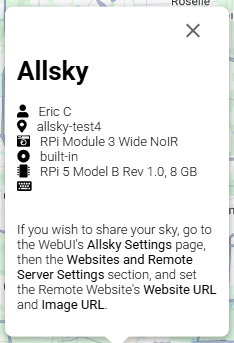
it usually means the Website URL and/or Image URL settings are empty.
Using Your Pi as a Remote Website
The location of the image.jpg file is different on your Pi versus on a remote Website, so you'll need to update the Image URL field in the Websites and Remote Server Settings section of the WebUI. If, for example, the URL to Allsky on your Pi is https://myallsky.com, the Image URL should be https://myallsky.com/current/image.jpg. Your Pi's webserver will convert /current to ~/allsky/tmp/current_images which is where image.jpg resides.